
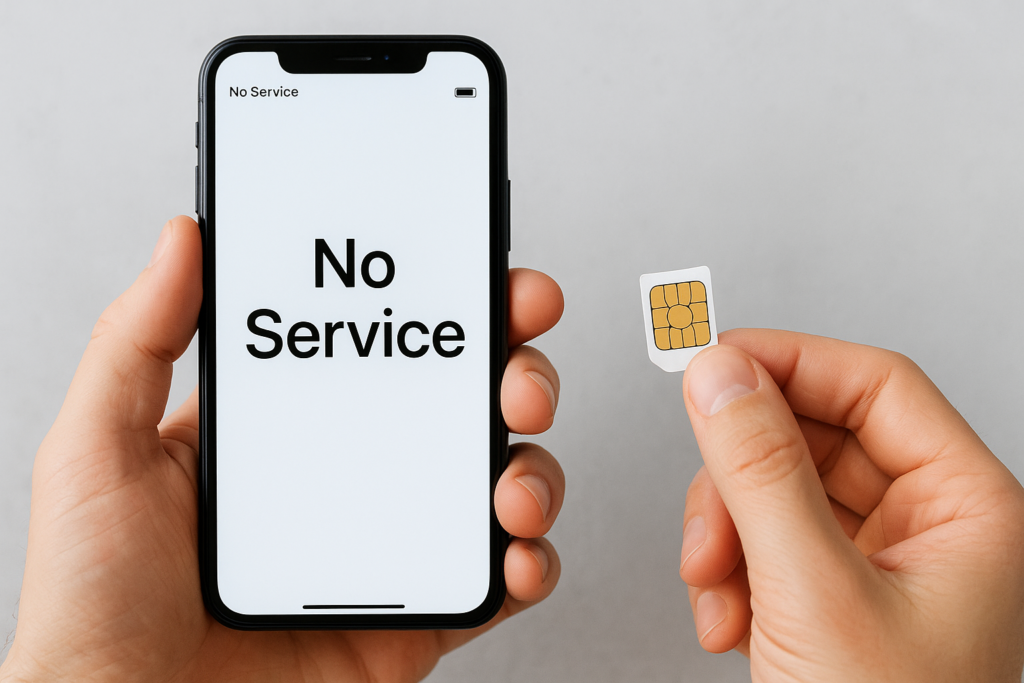
Few things are more frustrating than pulling out your phone only to see "No Service" or "Invalid SIM" staring back at you. When you’re asking why is my SIM card not working, you need answers fast, whether you’re missing important calls, can’t send texts, or are completely cut off from mobile data.
The good news? Most SIM card problems have straightforward fixes you can try at home. From a simple restart to reseating the SIM tray, many issues resolve within minutes. This guide walks you through the most common causes and step-by-step solutions for both iPhone and Android devices.
If your troubleshooting points to hardware damage, a faulty SIM tray, damaged contacts, or a deeper issue with your phone, fyxters connects you with vetted local repair technicians who can diagnose and fix the problem quickly, with upfront transparent pricing. But first, let’s rule out the easy fixes.
What usually causes SIM and no service errors
Understanding why is my SIM card not working comes down to three main categories: hardware problems, software conflicts, or network issues. Your phone relies on the SIM card’s physical contacts to communicate with your carrier, so even a tiny speck of dust or a bent pin can break that connection. Software settings, carrier updates, or corrupted data can also prevent your phone from recognising the SIM properly.
Hardware and physical issues
Physical damage is the most common culprit behind SIM card failures. When you insert or remove your SIM card repeatedly, the metal contacts can accumulate dust, lint, or oils from your fingers, which interrupts the electrical connection between the card and your phone’s reader. A bent or corroded SIM tray pin, a cracked SIM card, or even a slightly misaligned tray can trigger "No Service" errors instantly.
If your SIM card is physically damaged or your phone’s SIM reader has bent pins, simple troubleshooting won’t fix the problem.
Dropping your phone can also jar the SIM card loose inside the tray, breaking the connection without you realising it. Older SIM cards that have been cut down or reused across multiple devices are especially prone to these issues.
Software and settings problems
Your phone’s operating system manages SIM authentication and network settings, so software glitches or outdated carrier profiles can cause detection failures. A pending iOS or Android update, incorrect APN settings, or a corrupted network configuration can all prevent your SIM from working properly. Airplane mode being stuck on, mobile data toggles being disabled, or even a recent app update can interfere with your carrier connection.
Carrier and network issues
Sometimes the problem isn’t your phone or SIM at all. Carrier outages, unpaid bills, or deactivated accounts will trigger the same "Invalid SIM" or "No Service" messages you’d see with hardware problems. Your carrier may also have suspended your service for exceeding data limits or security reasons.
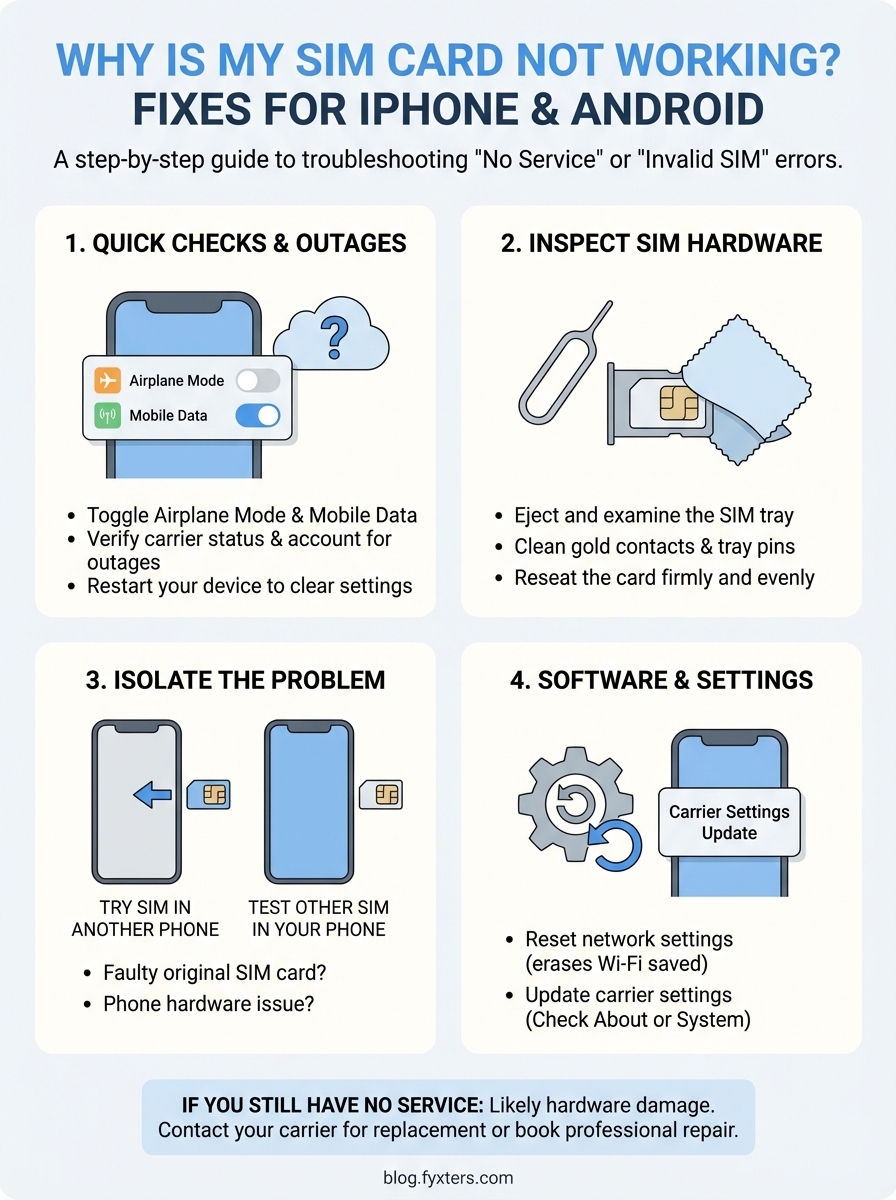
Step 1. Rule out quick settings and outages
Before diving into hardware troubleshooting when asking why is my SIM card not working, start with the simplest fixes that take less than a minute. Your phone’s quick settings and temporary network glitches cause most "No Service" errors, and you can rule these out immediately before opening your SIM tray or visiting a repair technician.
Check Airplane Mode and mobile data toggles
Swipe down from the top of your screen to access quick settings and confirm that Airplane Mode is turned off. When Airplane Mode activates accidentally, your phone cuts all wireless connections including cellular service. Next, verify that Mobile Data is enabled in the same quick settings panel or under Settings > Cellular/Mobile Network.
Verify carrier status and account
Visit your carrier’s website or call their customer service line to check for network outages in your area and confirm your account status. An unpaid bill, exceeded data cap, or security hold will disconnect your service immediately, mimicking SIM card problems.
If your carrier confirms your account is active and their network is operational, the issue lies with your phone or SIM hardware.
Restart your device
Power off your phone completely, wait 30 seconds, then turn it back on. This simple restart clears temporary network settings and forces your phone to re-establish its connection with your carrier’s towers.
Step 2. Reseat and inspect the SIM hardware
When quick settings and network checks don’t resolve your issue, the next step in understanding why is my SIM card not working involves physically inspecting the SIM card and tray. Most connection problems stem from dust buildup, bent contacts, or a misaligned tray, all of which you can spot and fix in under five minutes.
Remove and examine the SIM tray
Power off your phone completely before starting. Locate the SIM tray slot on your device’s side or top edge, then insert the ejection tool (or a straightened paperclip) into the small pinhole next to it. Push gently but firmly until the tray pops out about a centimetre, then pull it free with your fingers.
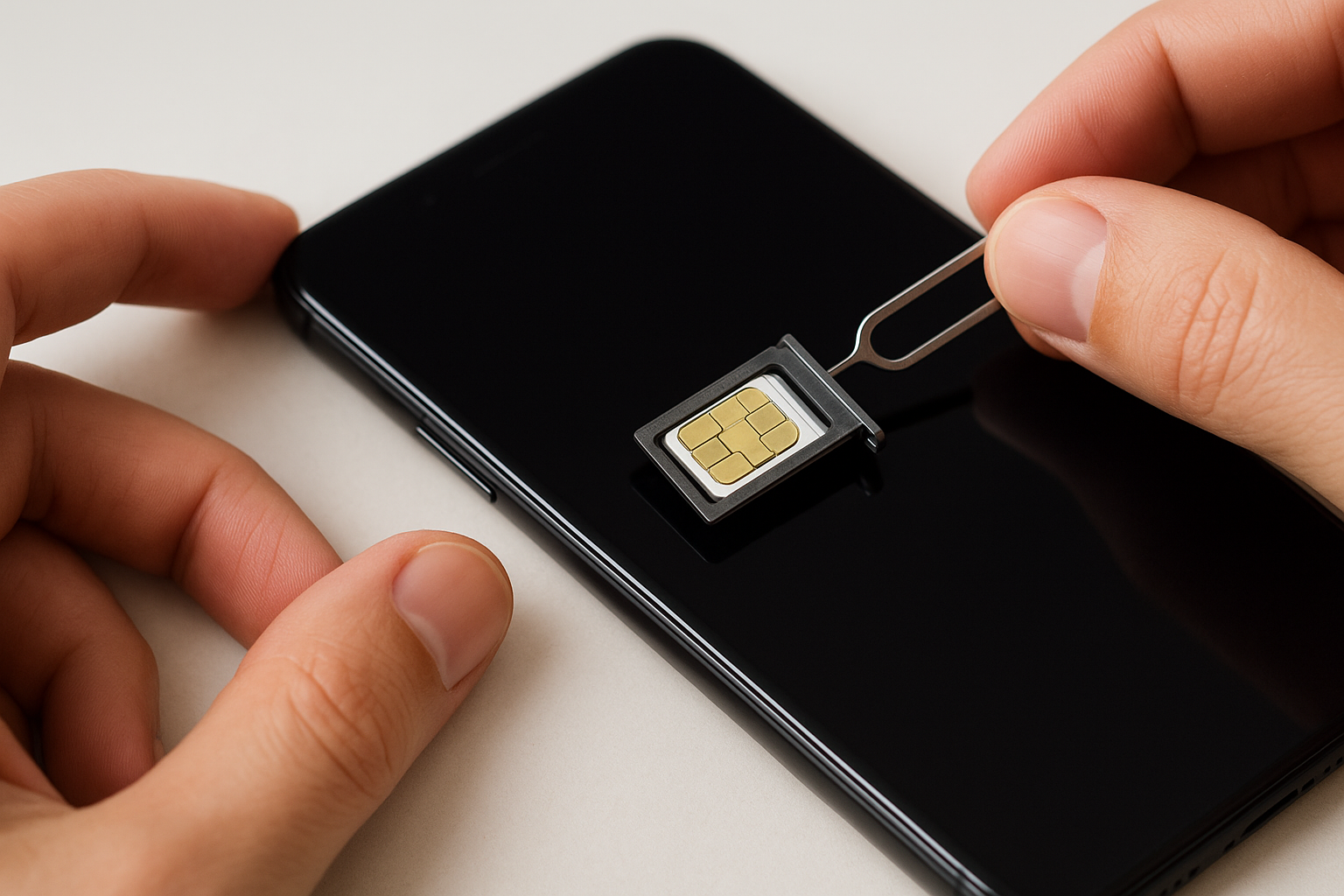
Physical inspection reveals problems that software troubleshooting can’t detect, including corroded contacts or a cracked SIM card.
Clean and reseat the card
Examine the gold contacts on your SIM card for dirt, fingerprint oils, or green corrosion. Wipe them gently with a clean, dry microfibre cloth or lint-free tissue. Inspect the tray pins inside your phone’s SIM slot for bends or debris, and blow out any dust with compressed air. Place the SIM card back into the tray exactly as it came out, ensuring it sits flat, then slide the tray firmly into your phone until it clicks into place.
Step 3. Test your SIM and phone separately
Isolation testing determines whether your SIM card or your phone’s hardware is causing the problem when you’re still wondering why is my SIM card not working. By testing your SIM card in a different device and trying a working SIM in your phone, you pinpoint the exact source of the failure within minutes without guessing.
Try your SIM in another device
Borrow a friend’s unlocked phone or use a spare device that accepts your SIM card size. Power off both phones, remove your SIM from your device, and insert it into the test phone. Turn on the test phone and wait for it to connect to your carrier’s network. If your SIM works immediately and shows full service bars, your original phone has a hardware problem with its SIM reader or internal antenna.
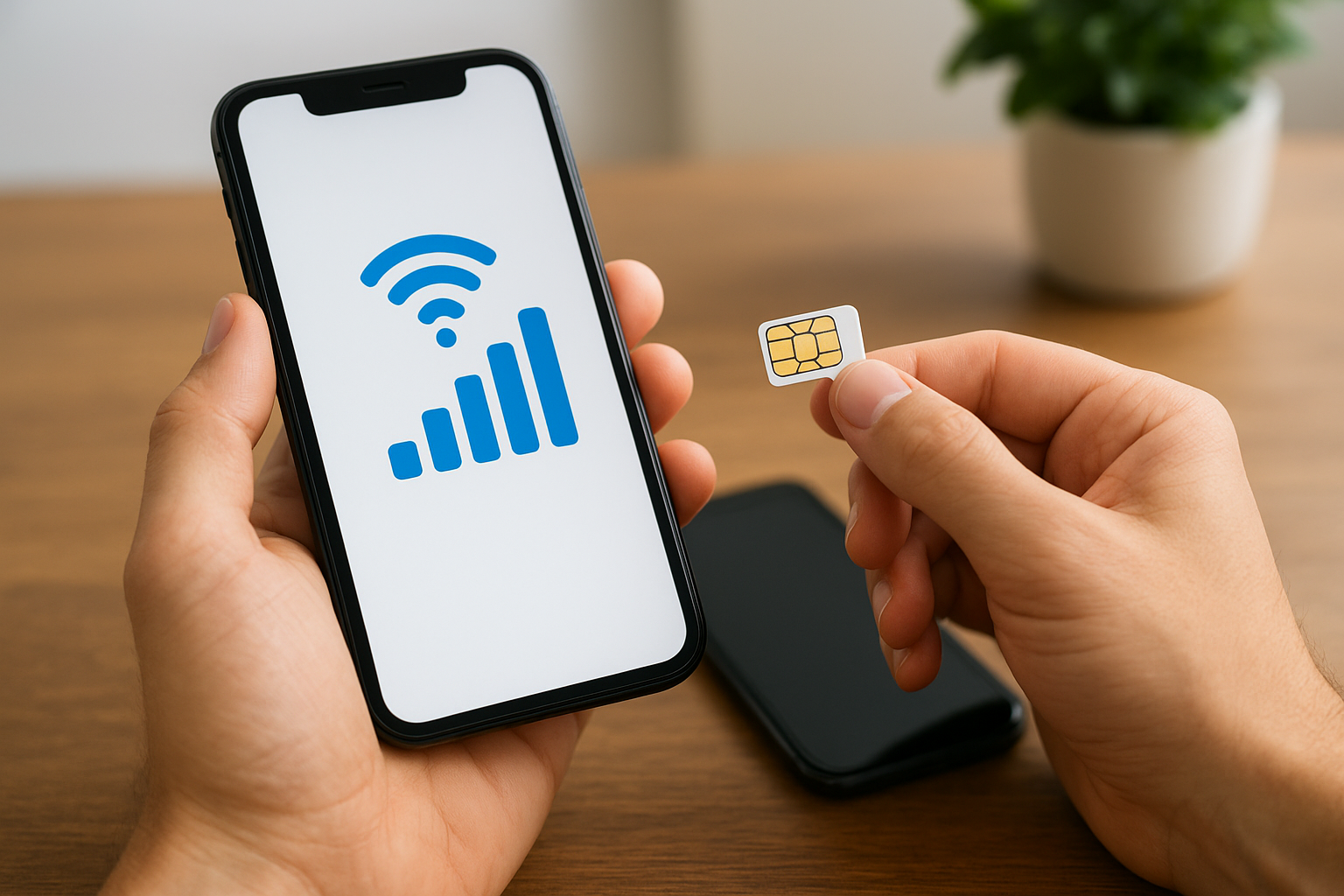
Testing your SIM in multiple devices reveals whether the card itself is faulty or your phone’s hardware needs repair.
Test another SIM in your phone
Insert a known working SIM card from the same carrier (or an unlocked SIM from any carrier) into your phone’s SIM tray. Power on your device and check if it detects the new SIM and establishes service. If the borrowed SIM works perfectly, your original SIM card is damaged and needs replacing from your carrier.
Step 4. Fix software and carrier settings
Hardware tests that confirm your SIM and phone work independently but you’re still asking why is my SIM card not working point to corrupted network configurations or outdated carrier profiles. Your phone stores cellular settings that can become corrupted after software updates or prolonged use.
Reset network settings
Your iPhone or Android device maintains a database of Wi-Fi networks, Bluetooth pairings, and cellular configurations that develop conflicts over time. Navigate to Settings > General > Transfer or Reset iPhone > Reset > Reset Network Settings on iOS, or Settings > System > Reset Options > Reset Wi-Fi, Mobile & Bluetooth on Android. Enter your passcode and confirm the reset.
Resetting network settings erases saved Wi-Fi passwords and Bluetooth connections, so have your passwords ready before proceeding.
This process forces your phone to rebuild its carrier connection using completely fresh settings.
Update carrier settings
Carriers push profile updates that optimize your phone’s connection to network towers and enable new features. On iPhone, navigate to Settings > General > About and wait 30 seconds for an update prompt. Android users should check Settings > System > System Updates for carrier updates. Install any available updates immediately and restart your device.
If you still have no service
When you’ve worked through every troubleshooting step and still can’t answer why is my SIM card not working, your phone likely has hardware damage that requires professional repair. A faulty SIM card reader, damaged antenna connections, or corrupted internal components won’t fix themselves with software resets or cleaning.
Your carrier can provide a replacement SIM card for free if testing confirmed your original card failed. However, if your phone refuses to detect any SIM card, the SIM tray assembly or logic board connections need expert diagnosis and repair.
Fyxters connects you with vetted local technicians who can diagnose SIM detection failures and fix hardware issues quickly. Whether you need SIM reader replacement, antenna repair, or logic board diagnostics, book same-day repair service with transparent upfront pricing. If you’re in Montreal and dealing with any phone hardware issues beyond SIM problems, check our iPhone screen repair services in Montreal for fast, reliable fixes backed by our quality guarantee.