
You’re on a call, and suddenly the other person can’t hear you. Or maybe voice memos come out silent, and Siri acts like you’ve said nothing at all. If you’re asking why is my phone microphone not working, you’re not alone, it’s one of the most common smartphone issues, and it usually strikes at the worst possible moment. The good news? Most microphone problems have simple fixes you can try right now.
Before you assume your phone needs professional repair, it’s worth running through some quick troubleshooting steps. From software glitches to blocked mic ports, the culprit is often something you can sort out in minutes. This guide walks you through 11 practical fixes that work across iPhones and Android devices, so you can get back to being heard.
And if the problem turns out to be hardware-related, that’s where Fyxters comes in. Our platform connects you with vetted local technicians who can diagnose and repair microphone issues fast, with upfront pricing and a service guarantee. Let’s start with the easy stuff first.
Before you start: pinpoint the symptom
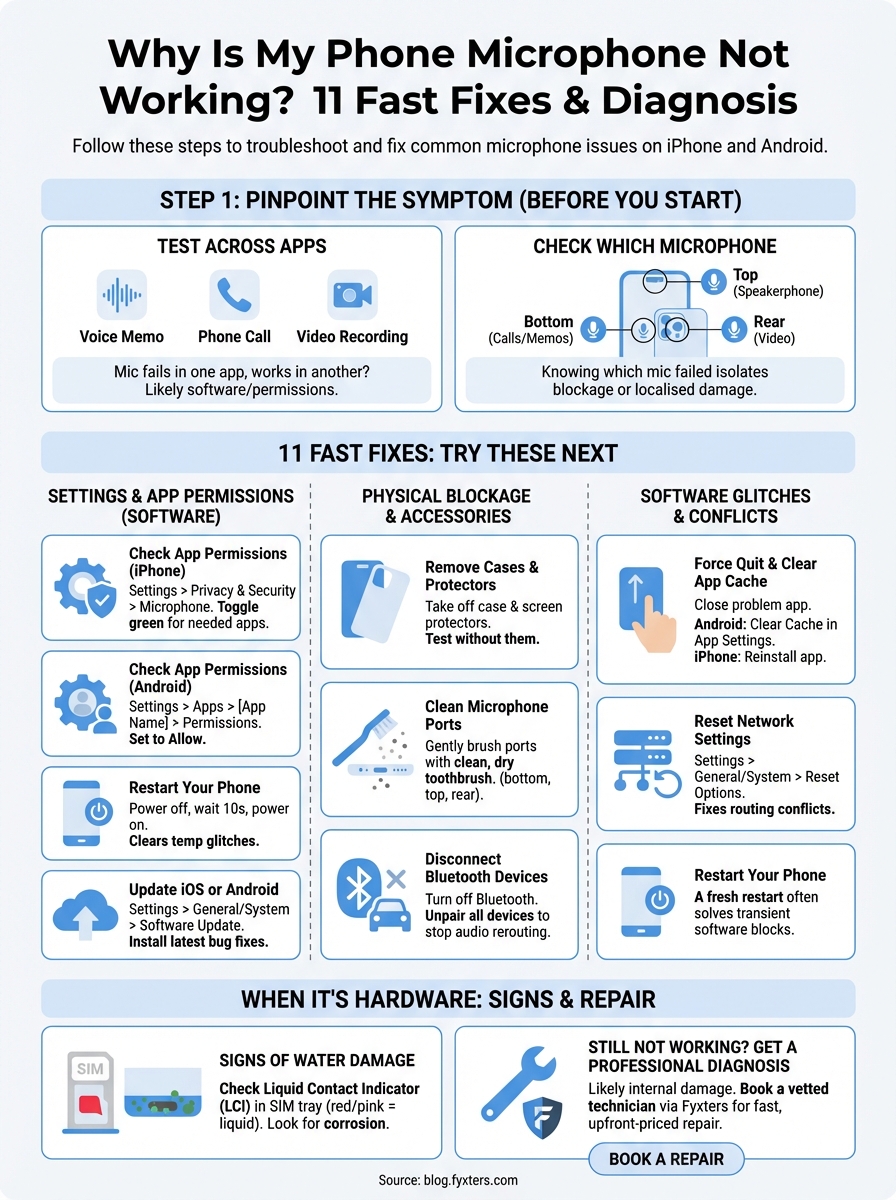
You can’t fix a microphone problem if you don’t know exactly what’s wrong. Different symptoms point to different causes, and running through a quick diagnostic process will save you from wasting time on the wrong solutions. Before you dive into fixes, spend two minutes testing your microphone systematically. This step helps you rule out app-specific bugs and confirms whether the issue is hardware or software related.
Test across different apps
Your microphone might fail in one app but work perfectly in another. Open your phone’s voice recorder app and record a short clip, then play it back to see if your voice comes through clearly. Next, try making a standard phone call to someone you trust and ask if they can hear you. Test a video recording through your camera app, then check if voice commands work with Siri (iPhone) or Google Assistant (Android).
If the microphone works in some apps but not others, the problem is likely app permissions or a software glitch rather than physical damage. Here’s a quick checklist to run through:
- Record a voice memo and play it back
- Make a standard phone call
- Record a video with audio
- Test voice assistant commands
- Try a video call on WhatsApp or FaceTime
Check which microphone is affected
Most smartphones have three separate microphones: one at the bottom for calls and voice memos, one at the top for speakerphone mode, and one on the back near the camera for video recording. When you ask yourself why is my phone microphone not working, you need to identify which one is acting up. Make a speakerphone call to test the top microphone, record a regular video to check the rear microphone, and try a voice memo to isolate the bottom one.
Knowing which specific microphone has failed tells you whether it’s a blocked port, water damage in one area, or a broader system issue.
If all three microphones fail at once, you’re likely dealing with software settings, permissions, or a more serious hardware fault. If only one mic is affected, physical blockage or localised damage is the usual suspect.
Fixes for settings and app permissions
Most microphone failures come down to settings you can adjust in seconds. Operating systems tighten privacy controls with every update, and apps often lose microphone access after a system refresh or when you deny permissions by accident. Checking these settings first takes less than a minute and solves the majority of software-related microphone issues without needing any technical knowledge.
Check app permissions on iPhone
Navigate to Settings > Privacy & Security > Microphone and scroll through the list of apps. You’ll see every app that’s requested microphone access, with toggles showing which ones are currently allowed. Flip the switch to green for any app where you need the microphone to work, such as WhatsApp, Instagram, or your voice recorder.
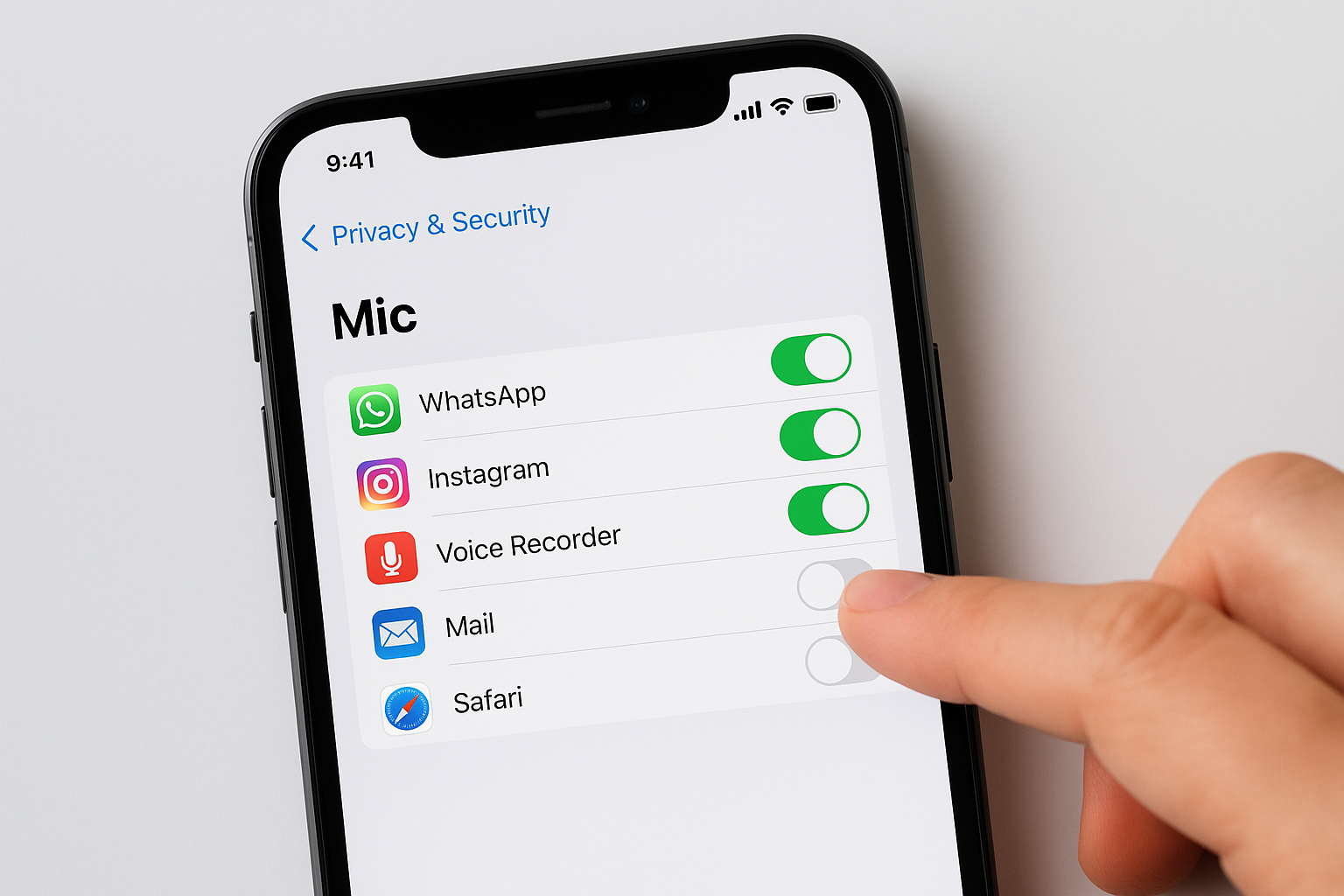
If an app isn’t listed here, it hasn’t requested microphone permission yet. Open the app and trigger a feature that needs audio, like recording a voice note, and the permission prompt will appear.
Check app permissions on Android
Open Settings > Apps, then select the specific app that’s having microphone trouble. Tap Permissions > Microphone and make sure it’s set to "Allow" rather than "Deny" or "Ask every time." Repeat this process for any app where the microphone fails.
Restart your phone
Power off your device completely, wait ten seconds, then turn it back on. This simple action clears temporary software glitches and resets system processes that might be blocking microphone access. Many users find that a fresh restart fixes why is my phone microphone not working when settings appear correct.
Fixes for accessories and physical blockage
Sometimes the answer to why is my phone microphone not working is sitting right in front of you. Phone cases, screen protectors, and debris are common culprits that physically block microphone ports or redirect audio to the wrong input. These issues are incredibly easy to fix, and you don’t need any technical expertise to sort them out. Check your accessories first before assuming the problem runs deeper.
Remove cases and screen protectors
Pull off your phone case completely and test the microphone again through a voice memo or call. Some cases have misaligned cutouts that cover the bottom or rear microphone ports, especially after-market cases designed for slightly different phone models. Tempered glass screen protectors can also interfere with the top microphone if they extend too far across the earpiece area.
If removing the case fixes the problem, either trim the case material away from the microphone holes or switch to a better-fitting case.
Clean the microphone ports
Lint, dust, and pocket debris build up inside microphone openings over time, muffling or completely blocking sound. Grab a clean, dry toothbrush and gently brush across each microphone port (bottom, top, and rear). You can also use compressed air to blow out stubborn particles, but keep the can upright and spray from at least 10 centimetres away to avoid moisture damage.

Never insert sharp objects like pins or needles into microphone ports, as you risk puncturing the internal mesh and causing permanent damage.
Disconnect Bluetooth devices
Your phone might be routing audio to a connected Bluetooth headset or car stereo instead of using the built-in microphone. Open your Bluetooth settings and disconnect all paired devices, then test the microphone again. This simple step often fixes phantom microphone failures when wireless accessories remain connected in the background.
Fixes for software glitches and conflicts
Software conflicts happen when system updates clash with apps, background processes interfere with microphone access, or cached data causes temporary failures. These glitches rarely point to physical damage, and you can usually resolve them through forced resets and system updates. When you’re still wondering why is my phone microphone not working after checking permissions and cleaning ports, software troubleshooting becomes your next logical step.
Force quit and clear app cache
Close the problem app completely by swiping up from the app switcher (iPhone) or tapping the square button and swiping away the app (Android). Reopen it and test the microphone again. If that doesn’t work, you need to clear the app’s cached data on Android by going to Settings > Apps > [App Name] > Storage > Clear Cache. iPhone users should delete the app entirely and reinstall it from the App Store, as iOS doesn’t offer a cache-clearing option.
Clearing cache removes temporary files that might be blocking microphone input without deleting your saved data or login credentials.
Update iOS or Android
Navigate to Settings > General > Software Update (iPhone) or Settings > System > System Update (Android) and install any available updates. Manufacturers push out bug fixes for microphone issues in regular updates, and running outdated software often causes compatibility problems with newer apps.
Reset network settings
Go to Settings > General > Transfer or Reset iPhone > Reset > Reset Network Settings (iPhone) or Settings > System > Reset Options > Reset Wi-Fi, Mobile & Bluetooth (Android). This action wipes saved networks and Bluetooth pairings but fixes conflicts that block microphone routing between cellular calls, Wi-Fi calling, and voice apps.
When it’s hardware: water damage and repairs
When you’ve tried every software fix and cleaned every port, the answer to why is my phone microphone not working might be physical damage inside the device. Water exposure, drops, and manufacturing defects can permanently break microphone components, and these issues won’t resolve themselves through settings adjustments or restarts. Hardware failures need professional repair, but you can identify the warning signs before booking a technician.
Signs of water damage
Check your phone’s liquid contact indicator, a small sticker inside the SIM card tray that turns red or pink when exposed to moisture. Pull out the SIM tray with the ejector tool and look for discolouration on the white or silver sticker. Corrosion around microphone ports, visible as green or white residue, confirms that liquid has seeped inside and damaged internal components.
Even phones with water resistance ratings can fail after prolonged exposure to humidity, steam, or submersion beyond their rated depth.
Get a professional diagnosis
Microphone repairs require specialist tools and replacement parts that you can’t access at home. Fyxters connects you with vetted local technicians who can diagnose the exact fault and provide upfront pricing before any work begins. Our platform matches you with the nearest available repair expert, similar to booking a ride, so you get same-day service with a quality guarantee on every repair. Skip the queue at crowded repair shops and book through Fyxters for transparent pricing and trusted technicians in your area.
All set: next steps
You’ve tested your microphone, adjusted permissions, cleaned the ports, and ruled out software glitches. If your phone microphone still isn’t working after running through these 11 fixes, you’re almost certainly dealing with hardware damage that needs professional attention. Water exposure, impact damage, or a faulty component won’t resolve itself through settings changes or app updates.
Book a repair through Fyxters and get matched with a vetted local technician who can diagnose the exact problem and fix it fast. Our platform provides transparent upfront pricing before any work begins, so you know exactly what you’ll pay with no hidden fees. Most microphone repairs take under an hour, and every job comes with a quality guarantee on parts and workmanship. Skip the guesswork and get your phone working properly again today.