
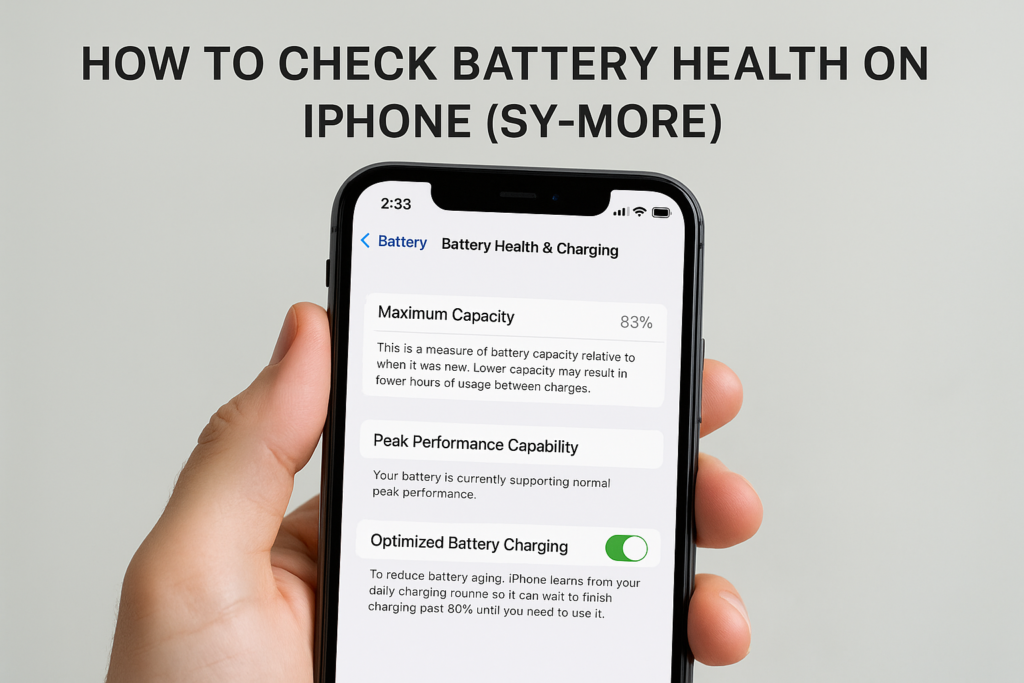
Your iPhone dies by mid-afternoon, charges slower than it used to, and feels sluggish during basic tasks. Before you panic or rush to buy a new phone, learning how to check battery health on iPhone shows you exactly what’s happening inside. Apple built this diagnostic tool directly into iOS, and accessing it takes less than a minute.
This guide walks you through the Settings method to view your battery’s maximum capacity and peak performance capability. We’ll also cover alternative approaches for deeper diagnostics, including cycle counts and warning signs to watch for on used devices. If your battery health has dropped below 80%, fyxters connects you with vetted local technicians across Canada who can replace it same-day with transparent pricing and a full repair guarantee.
What battery health means and what you need
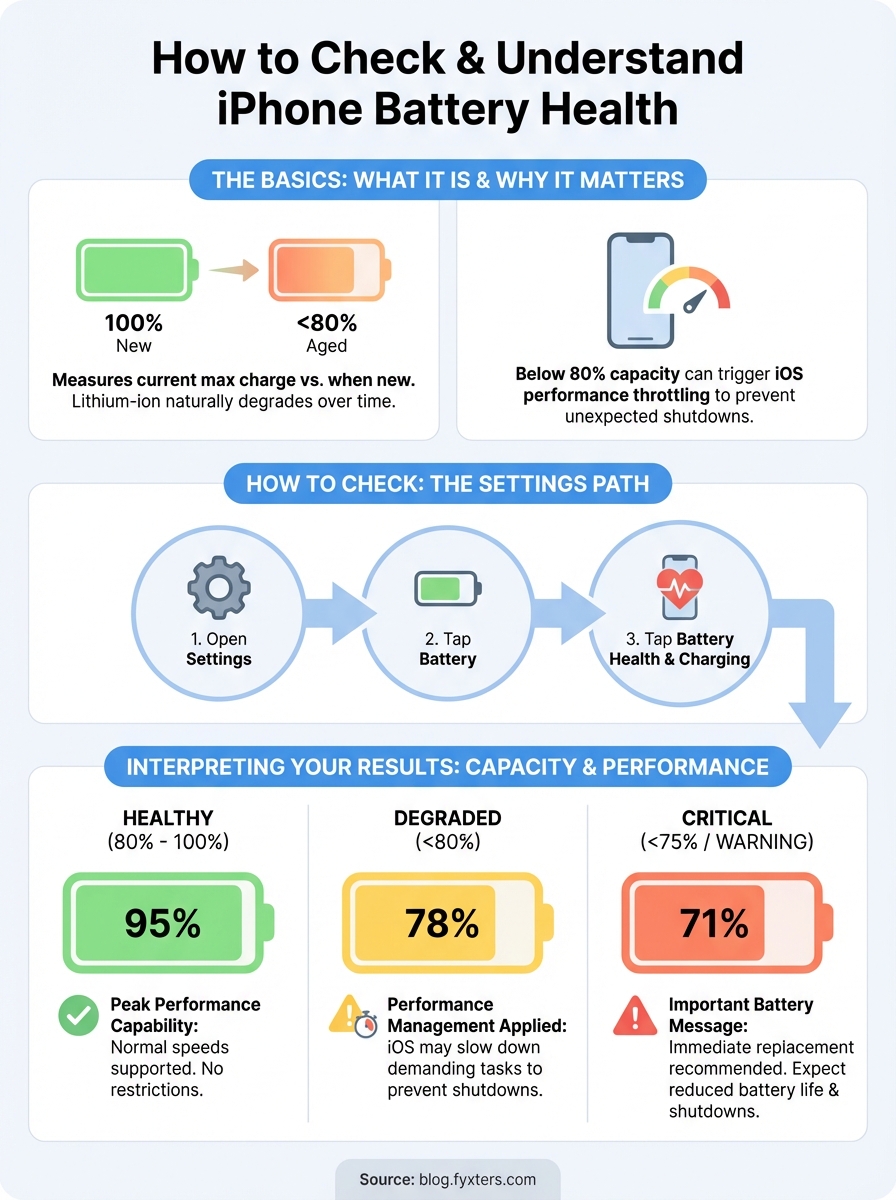
Battery health represents your lithium-ion battery’s current maximum charge capacity compared to when it was new. A brand-new iPhone holds 100% of its designed capacity, but this percentage drops naturally as you charge and discharge the device over months and years. Apple considers a battery that retains 80% or more of its original capacity as healthy, while anything below that threshold triggers performance management features to prevent unexpected shutdowns.
Why battery health matters for your iPhone
Your iPhone’s processor, screen brightness, and apps all draw power from this single battery. When the maximum capacity drops below 80%, iOS may automatically throttle performance during demanding tasks to prevent the device from shutting down at 20% or 30% remaining charge. You’ll notice longer app load times, reduced frame rates in games, and disabled flash features during high-drain activities. Understanding your battery’s condition helps you decide whether strange behaviour stems from hardware degradation or software issues.
Checking your battery health before it causes noticeable problems gives you time to plan a replacement instead of dealing with unexpected shutdowns.
What iOS version you need
Apple introduced the Battery Health feature in iOS 11.3, released in March 2018, so any iPhone running that version or newer lets you access these diagnostics. Your device needs to be an iPhone 6 or later model to support this feature, which covers every model from 2014 onwards. Before you learn how to check battery health on iPhone, verify your iOS version by opening Settings, tapping General, then About to see your current software number. If you’re running an older iOS version, update through Settings > General > Software Update to unlock battery diagnostics and other security improvements.
The battery health feature works on all iPhone models from the 6 onwards, including the SE line, mini variants, Plus sizes, and Pro editions. You don’t need to install third-party apps or connect to a computer to access Apple’s built-in diagnostics. Your iPhone calculates battery metrics automatically in the background, so the data appears instantly when you navigate to the correct Settings menu.
Check battery health in iPhone settings
Apple placed the battery health tool inside your Settings app, accessible within seconds once you know the exact path. You don’t need to download external apps or connect your iPhone to iTunes to view this information. The diagnostics menu updates automatically as your battery ages, showing real-time capacity percentages and performance status whenever you check it.
Navigate to the battery health menu
Open the Settings app from your home screen, then scroll down until you see the Battery option in the main list. Tap Battery to access your power management settings, where you’ll find usage statistics and charging history. Look for Battery Health & Charging near the middle of this screen, which replaced the older "Battery Health" label in iOS 17 and later versions.
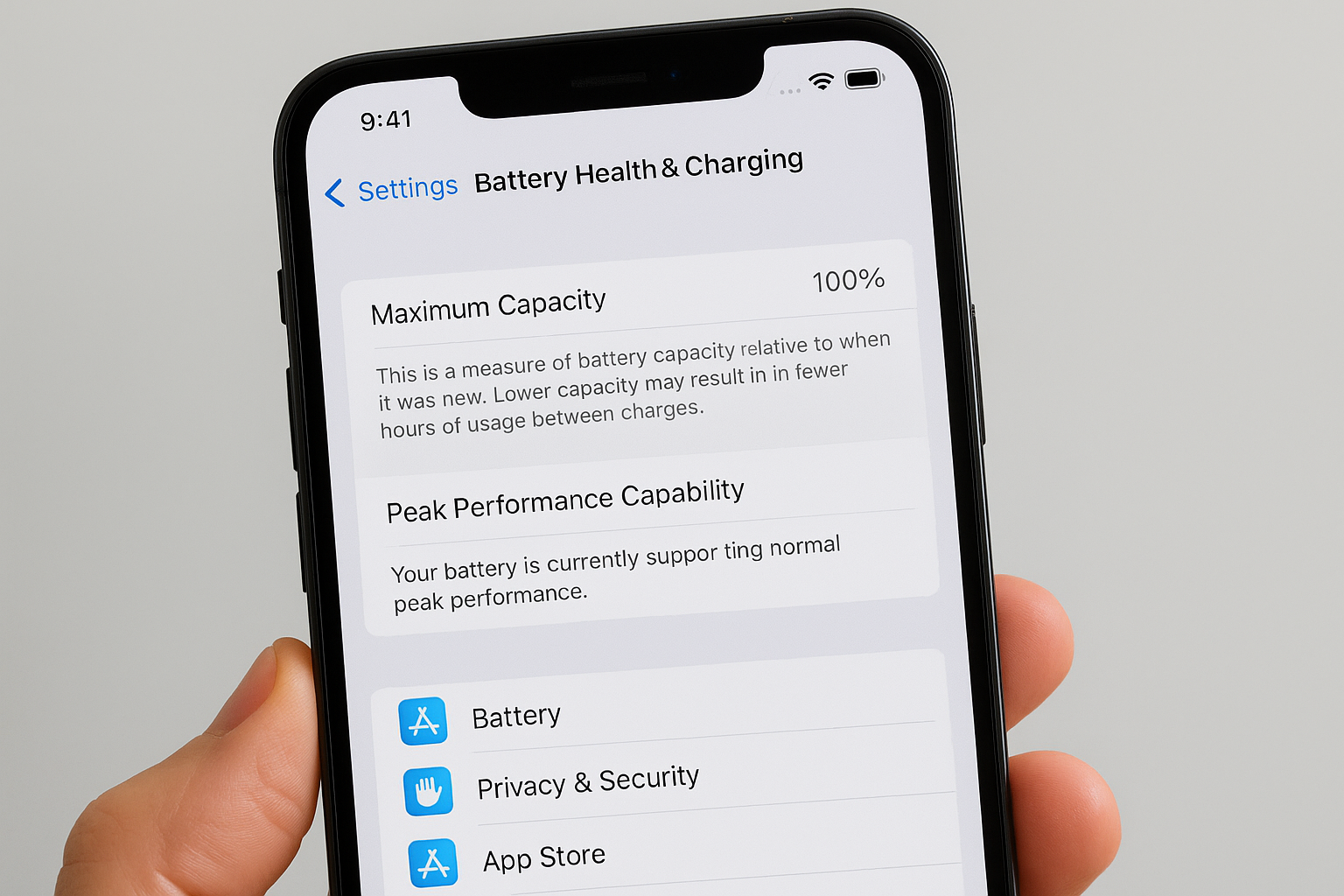
Follow these exact steps to check battery health on iPhone:
- Open Settings on your iPhone
- Scroll down and tap Battery in the main settings list
- Tap Battery Health & Charging (or "Battery Health" on older iOS versions)
- View your Maximum Capacity percentage at the top of the screen
- Check the Peak Performance Capability message below the percentage
What appears on the battery health screen
Your iPhone displays a maximum capacity percentage that represents how much charge your battery holds compared to when it was new. Below this number, you’ll see a peak performance capability status message that tells you whether iOS has enabled any performance management features. A green checkmark with "Your battery is currently supporting normal peak performance" means your iPhone operates at full speed without throttling.
Apple designed this screen to show the most critical battery information without overwhelming you with technical details like voltage readings or temperature sensors.
Understand maximum capacity and performance messages
The maximum capacity number and performance status work together to show you whether your iPhone operates at full speed or whether iOS has enabled power management features. Apple displays these two metrics on the same screen because they directly affect each other. A declining maximum capacity eventually triggers performance throttling to prevent your phone from shutting down unexpectedly during processor-intensive tasks or when the battery reaches lower charge levels.
What the maximum capacity percentage tells you
Your maximum capacity percentage represents the current charge your battery holds compared to its original factory capacity. An iPhone showing 95% maximum capacity stores 95% of the power it held when new, meaning it runs for slightly shorter periods between charges. Apple considers anything above 80% as healthy, though you’ll notice gradual battery life decreases as this number drops from 100% to 90% to 80% over time.
A two-year-old iPhone with normal daily use typically shows 85% to 90% maximum capacity, while heavy users who charge multiple times per day might see 75% to 80% after the same period. The percentage drops faster if you frequently drain your battery to zero, expose your iPhone to extreme temperatures, or use fast charging exclusively without letting the device cool between charges.
Peak performance capability status messages
iOS displays different performance status messages depending on your battery’s condition and whether throttling has activated. You’ll see one of these messages when you check battery health on iPhone:
- "Your battery is currently supporting normal peak performance": Your iPhone runs at full speed without restrictions
- "This iPhone has experienced an unexpected shutdown": iOS detected a problem and will apply performance management during high-demand tasks
- "Battery health unknown": The system cannot read your battery’s condition, usually after a third-party replacement
- "Important battery message": Your battery needs immediate replacement and performance throttling is active
Apple’s performance management reduces processor speeds during demanding tasks to prevent shutdowns, which you’ll notice as slower app launches and reduced screen brightness.
Find cycle count and deeper battery diagnostics
Apple’s built-in battery health screen shows maximum capacity but hides advanced metrics like cycle count and detailed wear data that technicians use to assess battery condition. Your iPhone tracks these statistics in the background, though you need alternative methods to access them beyond the standard Settings menu. A battery cycle represents one complete discharge from 100% to 0%, whether that happens in a single session or across multiple partial charges throughout several days.
Access battery analytics through iOS
Your iPhone stores detailed battery logs in the Analytics Data section, buried several levels deep in Settings. Navigate to Settings > Privacy & Security > Analytics & Improvements > Analytics Data, then scroll through the alphabetical list until you find files labelled "Analytics-[date].ips". These files contain raw diagnostic data including charge cycles, but reading them requires technical knowledge to parse the code-like format.
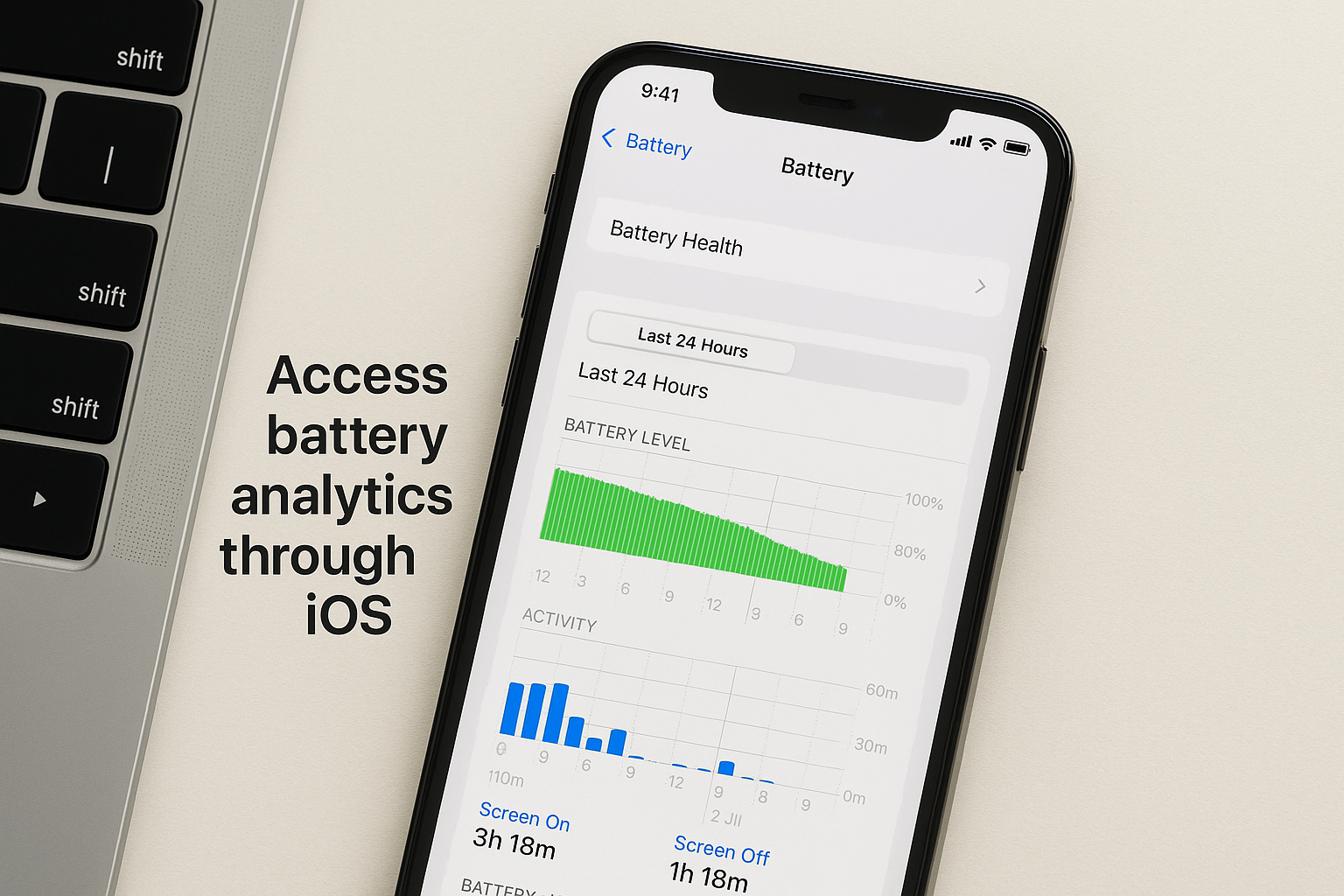
You’ll see entries that look like this when you open an analytics file:
- BatteryCycleCount: Total number of complete charge cycles
- MaximumCapacityPercent: Your current battery health percentage
- NominalChargeCapacity: Current maximum charge in milliamp-hours
Reading analytics data gives you access to the same battery metrics Apple technicians see during diagnostics appointments.
Third-party apps for advanced diagnostics
Several apps from the App Store provide easier access to cycle count data without digging through analytics files. Apps like coconutBattery (Mac) or Battery Life show cycle counts, design capacity, and current charge in a readable format when you connect your iPhone to a computer. These tools pull information from the same iOS system logs but present the data in charts and graphs that make sense at a glance, letting you track battery degradation over time.
What to do if your battery health is low
Once you learn how to check battery health on iPhone and discover your maximum capacity sits below 80%, you need to decide whether to replace the battery now or wait until performance issues worsen. Apple throttles processor speeds automatically at this threshold to prevent unexpected shutdowns, though you can temporarily disable this feature if you accept the risk. Your phone will continue working with degraded capacity, but you’ll charge more frequently and experience reduced performance during demanding tasks like gaming or video editing.
When to replace your iPhone battery
Replace your battery immediately if your maximum capacity drops below 75% or if iOS displays an "Important Battery Message" warning. You’ll notice your iPhone dying at 20% to 30% remaining charge, taking hours to charge fully, or shutting down unexpectedly during cold weather or processor-intensive apps. Apple considers 80% capacity the replacement threshold, but waiting until 70% or lower often causes daily frustration with charging interruptions and performance throttling that slows basic tasks.
Replacing your battery at 80% capacity restores full-day battery life and removes all performance management restrictions iOS applied to prevent shutdowns.
Choose between Apple and verified repair options
Apple Stores charge £89 to £119 for battery replacements depending on your iPhone model, with appointments booked days or weeks in advance through the Genius Bar system. Fyxters connects you with vetted local technicians across Montreal, Calgary, and other Canadian cities who complete same-day replacements with transparent upfront pricing and full repair guarantees. You receive the same quality parts and warranty protection without waiting for appointments or travelling to Apple locations, letting you restore your iPhone’s performance within hours of booking.
Ready to sort your battery?
You now know how to check battery health on iPhone through Settings, understand what maximum capacity percentages mean, and can spot the warning signs that indicate you need a replacement. Your iPhone tells you exactly when its battery has degraded beyond Apple’s 80% threshold, giving you advance notice before performance issues become daily frustrations. Regular checks let you track gradual capacity decline and plan a replacement around your schedule instead of dealing with emergency shutdowns at inconvenient moments.
Battery replacements restore full-day performance and remove all iOS throttling restrictions, letting your iPhone run at maximum processor speeds again. fyxters connects you with vetted local technicians across Canada who complete same-day replacements with transparent upfront pricing and repair guarantees. Book your battery replacement today and skip the Apple Store waitlist while getting the same quality parts installed within hours of your appointment.