
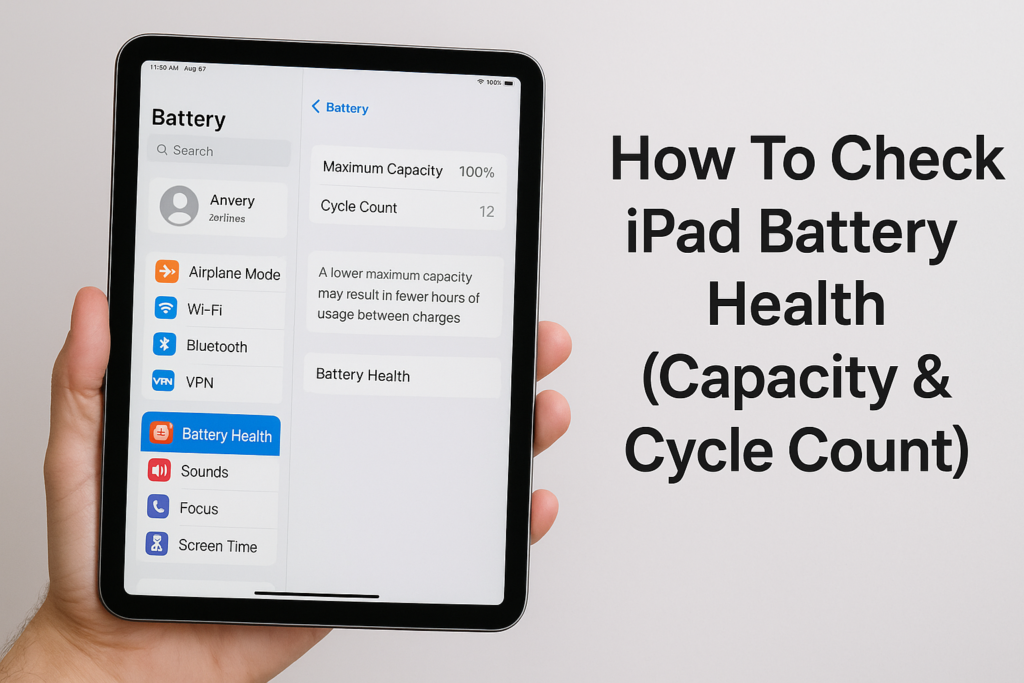
Your iPad’s battery doesn’t last forever. After a few years of daily charging, you might notice shorter screen time, unexpected shutdowns, or sluggish performance. Learning how to check iPad battery health helps you understand whether your device just needs a charge, or whether it’s time for a battery replacement.
Apple makes this process straightforward on newer iPads, but older models lack a built-in battery health menu. This guide walks you through every option, from native settings to third-party tools, so you can assess your battery’s maximum capacity and cycle count regardless of which iPad you own.
At fyxters, we connect Canadians with vetted repair technicians for fast, transparent device repairs. Knowing your battery health is the first step in deciding whether a professional replacement makes sense for your situation.
What battery health means on iPad
Battery health refers to your iPad’s current ability to hold a charge compared to when it was brand new. Apple uses lithium-ion batteries that degrade over time, meaning each charge holds less power as your device ages. Understanding how to check iPad battery health gives you a clear picture of whether your battery performs within normal limits or requires professional attention.
Maximum capacity explained
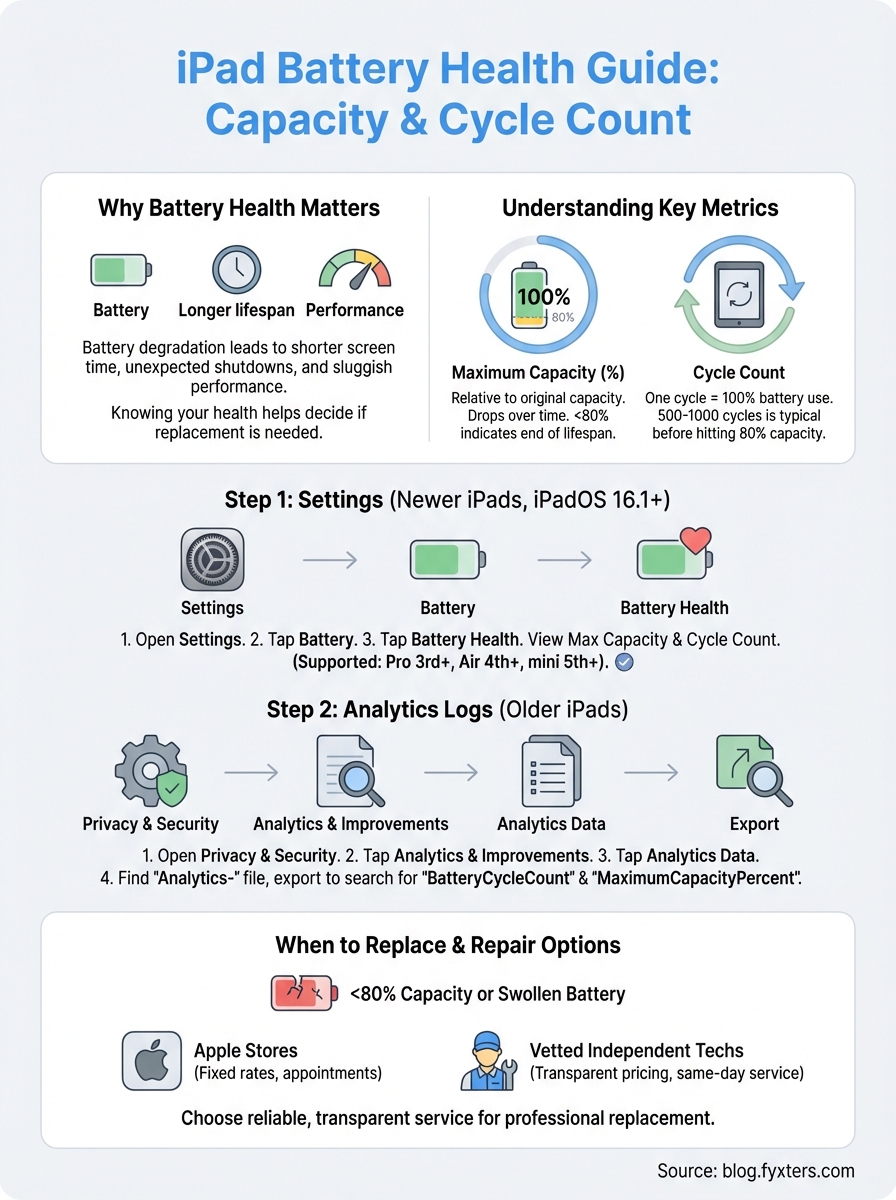
Maximum capacity shows the percentage of charge your battery holds relative to its original design capacity. A new iPad starts at 100% maximum capacity, but this number drops after hundreds of charge cycles. When your iPad reaches 80% maximum capacity, Apple considers the battery consumed and recommends replacement. You’ll notice reduced screen time, apps closing unexpectedly, and faster drain during normal use once capacity dips below this threshold.
Maximum capacity below 80% indicates your battery has reached the end of its designed lifespan.
Cycle count explained
A charge cycle happens when you use 100% of your battery’s capacity, though not necessarily in a single session. Using 50% today and 50% tomorrow counts as one complete cycle. iPads typically handle between 500 and 1,000 charge cycles before hitting 80% capacity, depending on your model and usage patterns. Heavy users reach this limit faster than occasional users. Checking your cycle count alongside maximum capacity helps you predict when replacement becomes necessary, since high cycle counts correlate with reduced battery performance even if capacity percentages look acceptable.
Step 1. Check Battery Health in Settings
Apple added a native battery health feature to iPads running iPadOS 16.1 or later. This built-in tool shows your maximum capacity and cycle count without requiring third-party apps. If your iPad updated to this software version, learning how to check iPad battery health takes seconds through the Settings app.
Access battery settings
You access battery health through a dedicated settings menu that displays real-time data about your iPad’s power performance. Follow these steps to view your battery statistics:
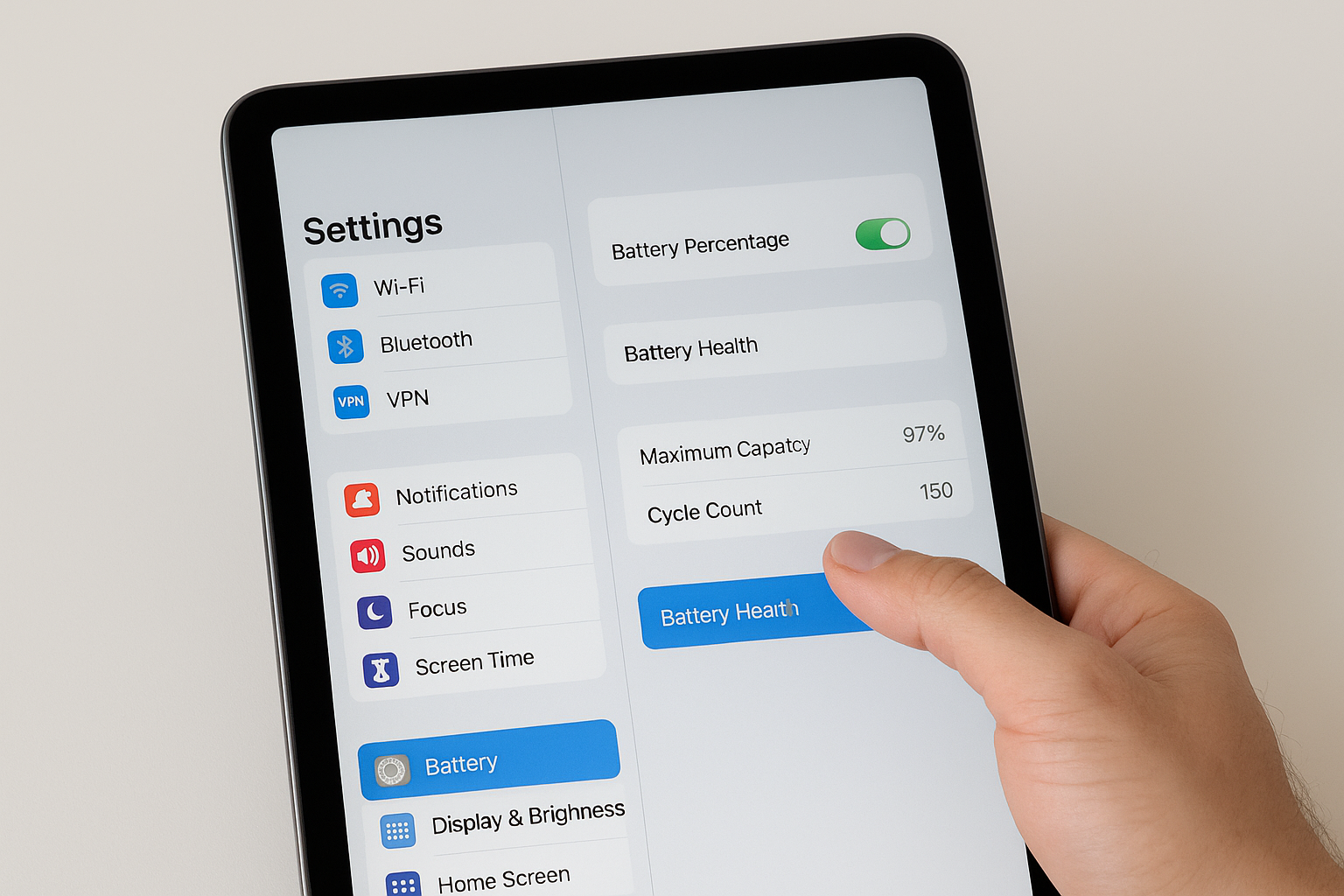
- Open Settings from your home screen
- Scroll down and tap Battery
- Tap Battery Health near the top of the menu
- Review your maximum capacity percentage and cycle count
Your iPad displays these metrics alongside recommendations for battery maintenance and performance optimisation.
Battery Health appears only on iPads running iPadOS 16.1 or newer.
Compatibility requirements
Not all iPads support this feature, even with the latest software. Apple limits Battery Health settings to models released after 2018, including iPad Pro 11-inch and 12.9-inch (3rd generation or later), iPad Air (4th generation or later), and iPad mini (5th generation or later). Older models require alternative methods covered in the next steps.
Step 2. Pull battery stats from analytics logs
Older iPads without native battery health settings store diagnostic data in hidden analytics logs. This method works on any iPad model, regardless of software version. Learning how to check iPad battery health through analytics requires digging through system logs that Apple collects for troubleshooting purposes.
Locate analytics data
Your iPad generates log files automatically that contain battery statistics. You access these files through a buried settings menu that most users never explore.
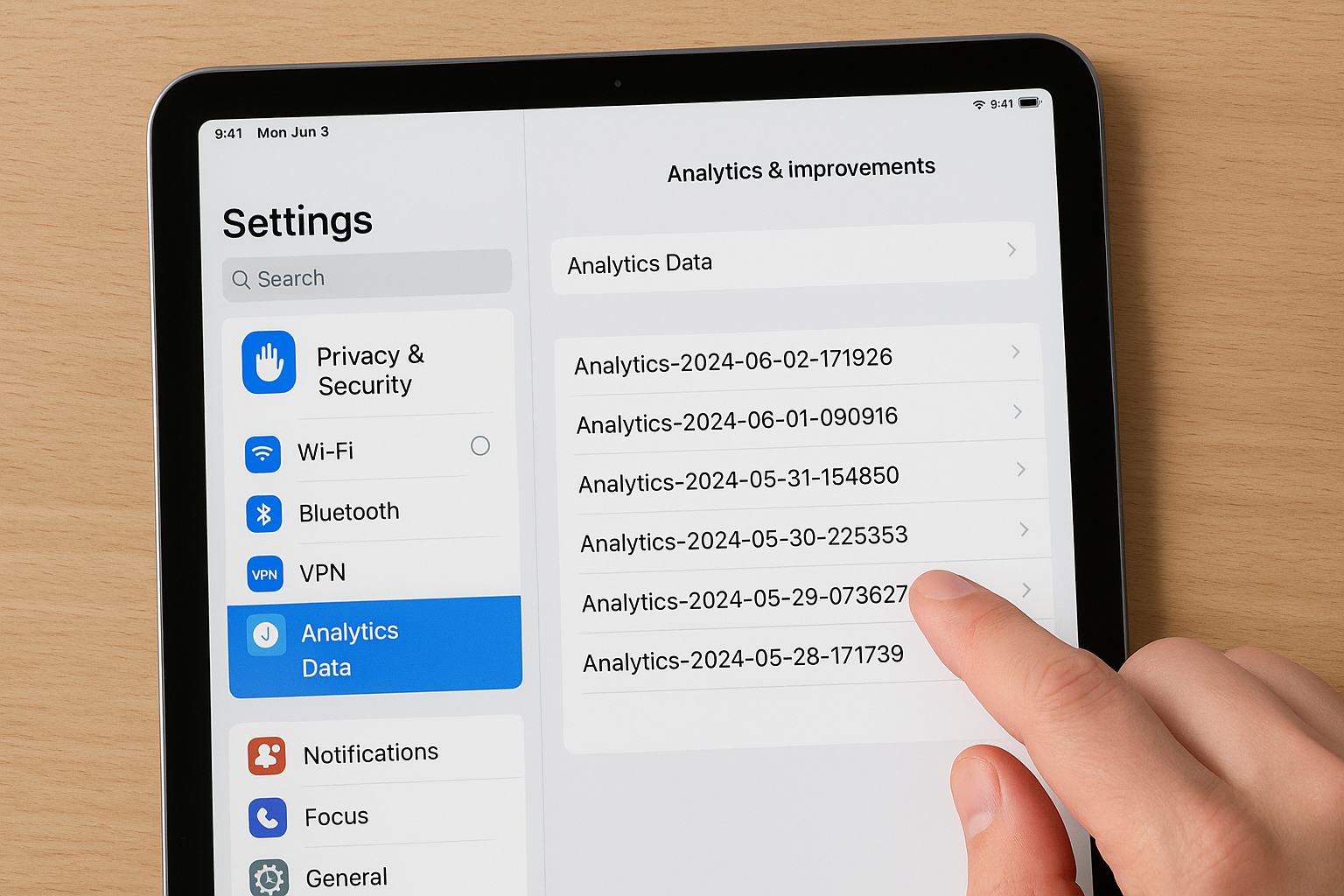
- Open Settings and tap Privacy & Security
- Scroll to the bottom and select Analytics & Improvements
- Tap Analytics Data to view all available logs
- Scroll through the list and find files starting with Analytics- followed by a date
- Look for the most recent file to get current battery data
Analytics Data displays hundreds of log files arranged alphabetically. Files update daily, so the newest entry shows your latest battery metrics.
Analytics logs contain raw technical data that requires manual interpretation.
Export and read the log file
You need to export the file to read battery statistics comfortably. Tap the log file, then tap the share icon in the top-right corner. Send the file to Notes or Mail for easier reading. Search the document for terms like BatteryCycleCount and MaximumCapacityPercent to find your battery health numbers.
Step 3. Read the numbers: capacity and cycles
Once you’ve accessed your battery data through either Settings or analytics logs, you need to interpret the numbers correctly. Understanding what the percentages mean and how cycle counts relate to battery degradation helps you decide whether your iPad needs professional attention or continues performing within normal parameters. Learning how to check iPad battery health only makes sense when you can translate raw data into actionable decisions.
Understanding capacity percentages
Your maximum capacity percentage tells you how much charge your battery holds compared to its original state. A reading between 95% and 100% indicates a nearly new battery with minimal wear. Capacity between 85% and 94% shows normal degradation for a device used regularly over one to two years. Numbers below 80% capacity signal that your battery reaches the end of its service life and requires replacement for optimal performance.
Capacity below 80% means your iPad holds only four-fifths of its original charge.
Interpreting cycle counts
Cycle count shows how many complete charge cycles your iPad completed since activation. Lower numbers indicate newer devices or light usage patterns, whilst higher counts suggest heavy daily charging habits. Most iPads reach 80% capacity around 500 to 1,000 cycles depending on the model. Comparing your cycle count against capacity percentage reveals whether your battery ages faster than expected.
When to replace the battery
Once you understand how to check iPad battery health, you need clear guidelines for deciding when replacement becomes necessary. Your battery might show warning signs through performance metrics or physical symptoms that indicate degradation beyond normal wear. Acting on these signals prevents unexpected shutdowns and maintains your iPad’s productivity.
Signs that replacement is necessary
Your iPad requires a new battery when maximum capacity drops below 80%, as Apple considers this the end of designed battery lifespan. You’ll experience several symptoms that confirm degradation: your device dies suddenly despite showing 20% or more charge, apps crash frequently during routine tasks, or your iPad takes hours to reach full charge. Physical signs include a swollen battery that pushes your screen away from the frame, which demands immediate professional attention for safety reasons.
Replace your battery immediately if you notice screen separation or case bulging.
Repair options available
You have two main paths for battery replacement: Apple Stores or vetted independent technicians. Apple charges fixed rates but requires appointments and potentially ships your device for several days. fyxters connects you with certified local technicians who provide transparent upfront pricing, same-day service, and repair guarantees. Both options restore your iPad’s performance, though independent services often deliver faster turnaround times at competitive prices.
Quick wrap-up
Learning how to check iPad battery health gives you complete control over your device’s performance and longevity. Whether you access built-in battery settings on newer iPads or extract data from analytics logs on older models, you now have the tools to monitor maximum capacity and cycle counts accurately. These metrics tell you exactly when your battery reaches the end of its service life and requires professional replacement.
When your iPad shows capacity below 80% or exhibits warning signs like unexpected shutdowns, you need fast, reliable service. fyxters connects you with vetted repair technicians across Canada who provide transparent upfront pricing and same-day repairs for all your device needs. Whether you’re in Montreal, Calgary, or another major city, our platform matches you with the closest qualified professional. Book your device repair in Montreal through fyxters and restore your iPad’s full performance with trusted local service backed by our quality guarantee.