
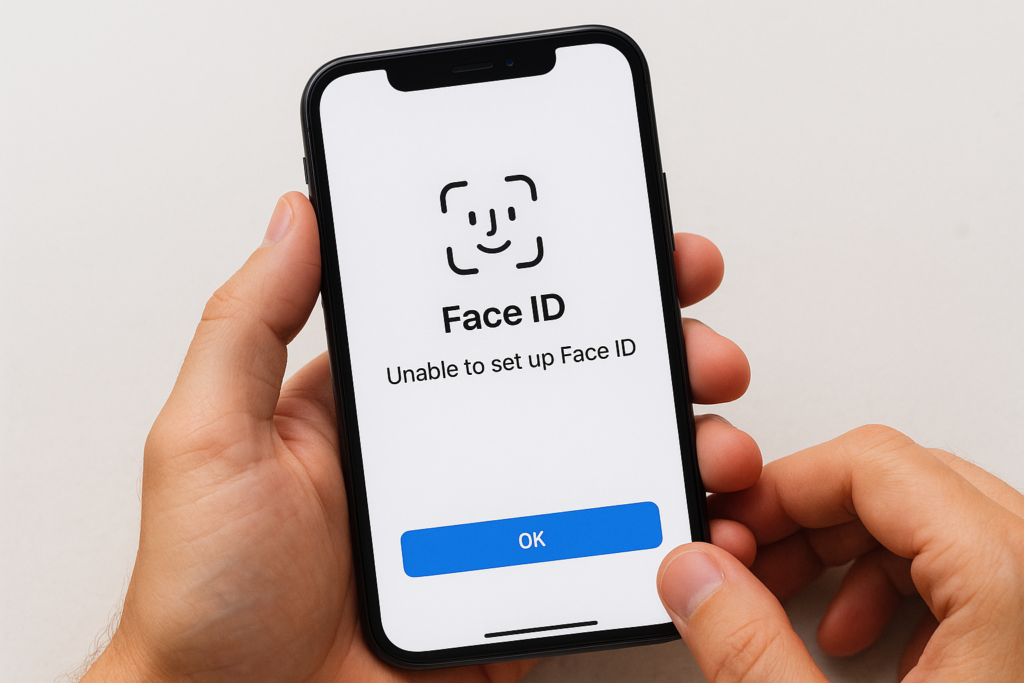
You’ve tried scanning your face multiple times, but your iPhone keeps failing to complete the setup. When Face ID setup not working becomes your reality, it’s more than just annoying, it blocks you from using one of your phone’s most convenient security features. The good news? Most setup failures stem from fixable software glitches or simple oversights that you can resolve yourself.
This guide walks you through the most effective troubleshooting steps to get Face ID working on your iPhone or iPad. We’ll cover everything from basic checks to deeper fixes, including what to do when you see "Face ID Not Available" or find the option greyed out entirely. If your issue turns out to be hardware-related, like a damaged TrueDepth camera, Fyxters connects you with vetted local technicians across Canada who can diagnose and repair it quickly, with upfront pricing and a service guarantee.
Before you start: what Face ID needs to work
Face ID relies on specific hardware and conditions to function properly. Your iPhone or iPad must have a TrueDepth camera system, which Apple introduced with the iPhone X in 2017. This means Face ID works on iPhone X and newer models, as well as iPad Pro models from 2018 onwards. Older devices like the iPhone 8 or earlier simply don’t have the necessary sensors, so if face id setup not working appears on an older device, the feature isn’t available at all.
Compatible devices and hardware
Your device needs the front-facing TrueDepth camera array intact and undamaged. This system includes multiple sensors: an infrared camera, a flood illuminator, and a dot projector that maps your face in three dimensions. If you’ve recently dropped your phone or had the screen replaced by an uncertified shop, these sensors might be misaligned or damaged. Third-party screen replacements sometimes block or interfere with the TrueDepth sensors, preventing Face ID from working entirely.
Even minor damage to the front camera area can disable Face ID permanently until you get professional repair.
Environmental setup requirements
Face ID needs proper lighting and positioning to scan your face during setup. Hold your iPhone or iPad 25 to 50 centimetres from your face in portrait orientation. Avoid extremely bright sunlight or complete darkness, as both conditions interfere with the infrared sensors. Remove anything covering your face, including sunglasses, heavy makeup, or face masks during the initial setup process. You can add an alternate appearance later if you regularly wear glasses or other accessories.
Step 1. Fix the common setup errors and blockers
Start with the simplest fixes first, as many face id setup not working issues come from physical obstructions or temporary software glitches that you can resolve in seconds. These basic checks solve the majority of setup failures without needing deeper troubleshooting or professional repair.
Remove physical obstructions
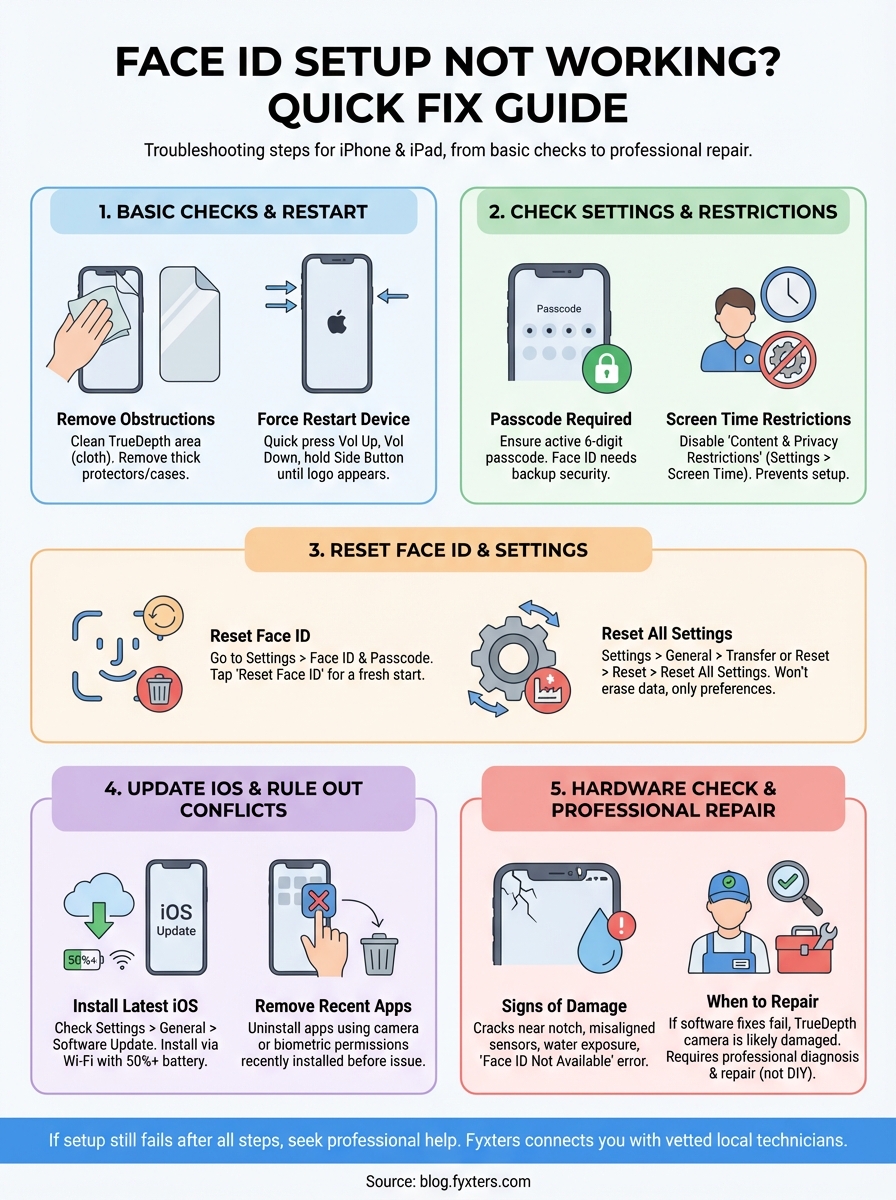
Check your iPhone or iPad screen for anything blocking the TrueDepth camera notch. Thick screen protectors, especially those with poorly aligned cutouts, often cover the sensors needed for Face ID. Remove your screen protector temporarily to test if setup completes. Dirt, fingerprints, or dust accumulated in the notch can also interfere with the infrared sensors. Wipe the front camera area gently with a clean, slightly damp microfibre cloth.
Physical blockages cause most Face ID failures during setup, and cleaning takes less than a minute.
Force restart your device
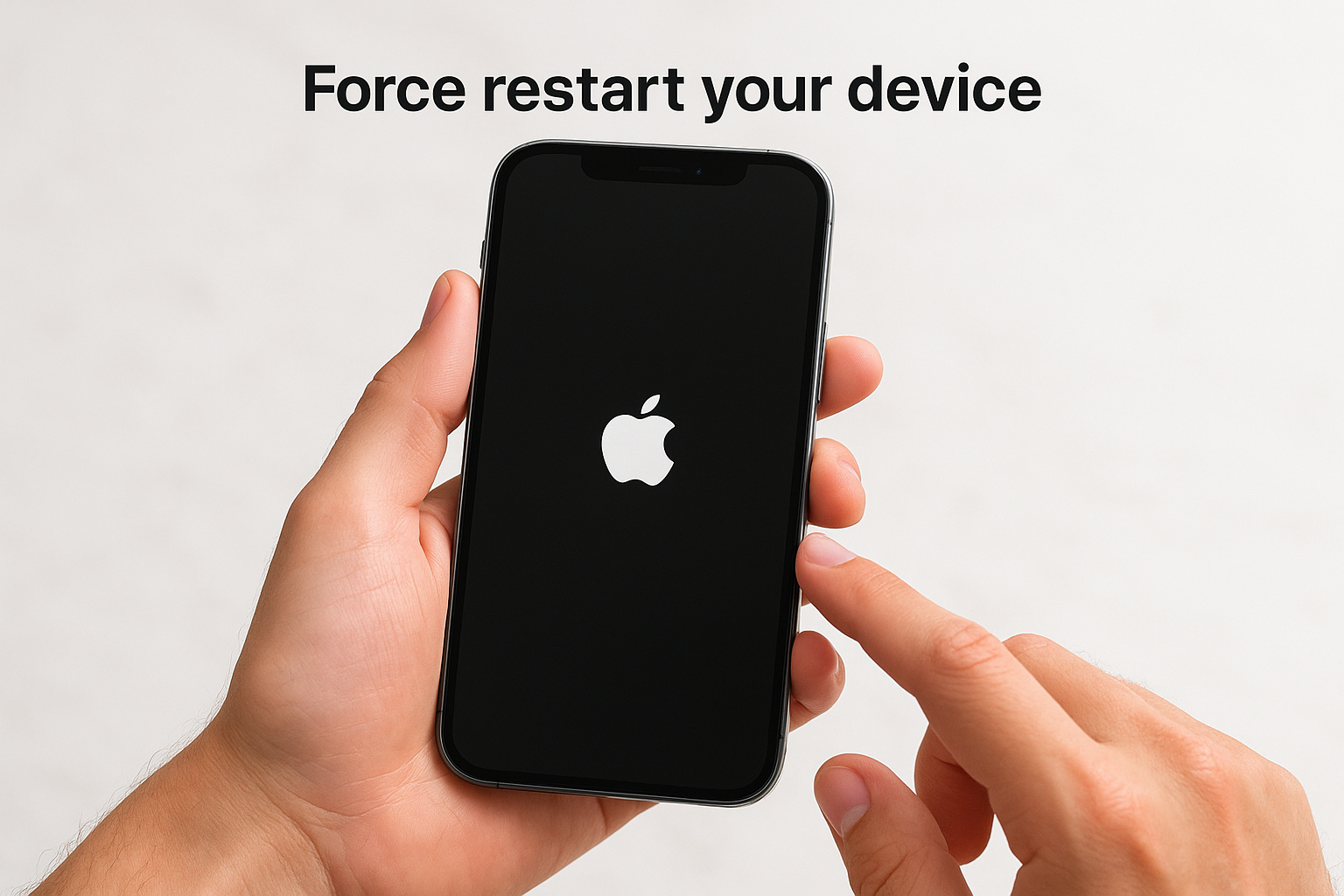
A force restart clears temporary software conflicts that prevent Face ID from initialising. Press and quickly release the volume up button, then the volume down button, then press and hold the side button until you see the Apple logo. This process takes about 10 seconds and often resolves setup errors without losing any data.
Step 2. Check the Face ID settings that stop setup
Your iPhone’s security and privacy settings sometimes prevent Face ID from setting up, even when the hardware works perfectly. Certain parental controls or restrictions can grey out Face ID options entirely, making it impossible to complete the initial setup process.
Verify passcode requirements
Face ID requires an active device passcode to function as your backup authentication method. Navigate to Settings > Face ID & Passcode and confirm you’ve set a six-digit passcode. If you see a greyed-out Face ID option, your passcode might be disabled or too simple. Change your passcode to meet the requirements and restart the setup process.
Check Screen Time restrictions
Screen Time restrictions block Face ID setup if someone enabled content and privacy limitations on your device. Open Settings > Screen Time > Content & Privacy Restrictions and check if "Passcode Changes" is set to "Don’t Allow". When this restriction is active, face id setup not working becomes inevitable because the system prevents authentication method changes.
Restrictions often cause setup failures on devices managed by parents or employers.
Step 3. Reset Face ID and related iPhone security features
Sometimes face id setup not working persists because of corrupted authentication data stored on your device. Resetting Face ID and related security features clears this data and gives you a fresh start without affecting your personal files or apps. This step resolves setup failures caused by software conflicts that survive a simple restart.
Reset Face ID completely
Navigate to Settings > Face ID & Passcode and enter your device passcode. Scroll down and tap Reset Face ID to completely remove all stored facial recognition data. Your iPhone deletes the mathematical representation of your face and clears any alternate appearances you’ve added. After the reset completes, attempt the Face ID setup process again from the beginning. This often resolves persistent scanning failures and "Unable to Complete" errors.
Reset all settings
If deleting Face ID alone doesn’t work, reset all device settings by going to Settings > General > Transfer or Reset iPhone > Reset > Reset All Settings. This action restores system preferences to factory defaults without erasing your data, apps, or media. Your Wi-Fi passwords, wallpapers, and notification settings will reset, but this comprehensive approach clears deeper software conflicts affecting Face ID.
Resetting all settings fixes complex software issues while keeping your personal data intact.
Step 4. Update iOS and rule out software conflicts
Outdated iOS versions contain software bugs that interfere with Face ID setup and authentication. Apple releases regular security patches that fix known issues affecting the TrueDepth camera system. Running an older version might be the reason face id setup not working persists even after trying physical and settings-based fixes.
Install the latest iOS update
Navigate to Settings > General > Software Update and check if Apple has released a newer version. Download and install any available updates over Wi-Fi with at least 50% battery. Your iPhone restarts automatically after the installation completes. Test Face ID setup again once your device boots back up, as many authentication bugs disappear after updating to the latest iOS release.
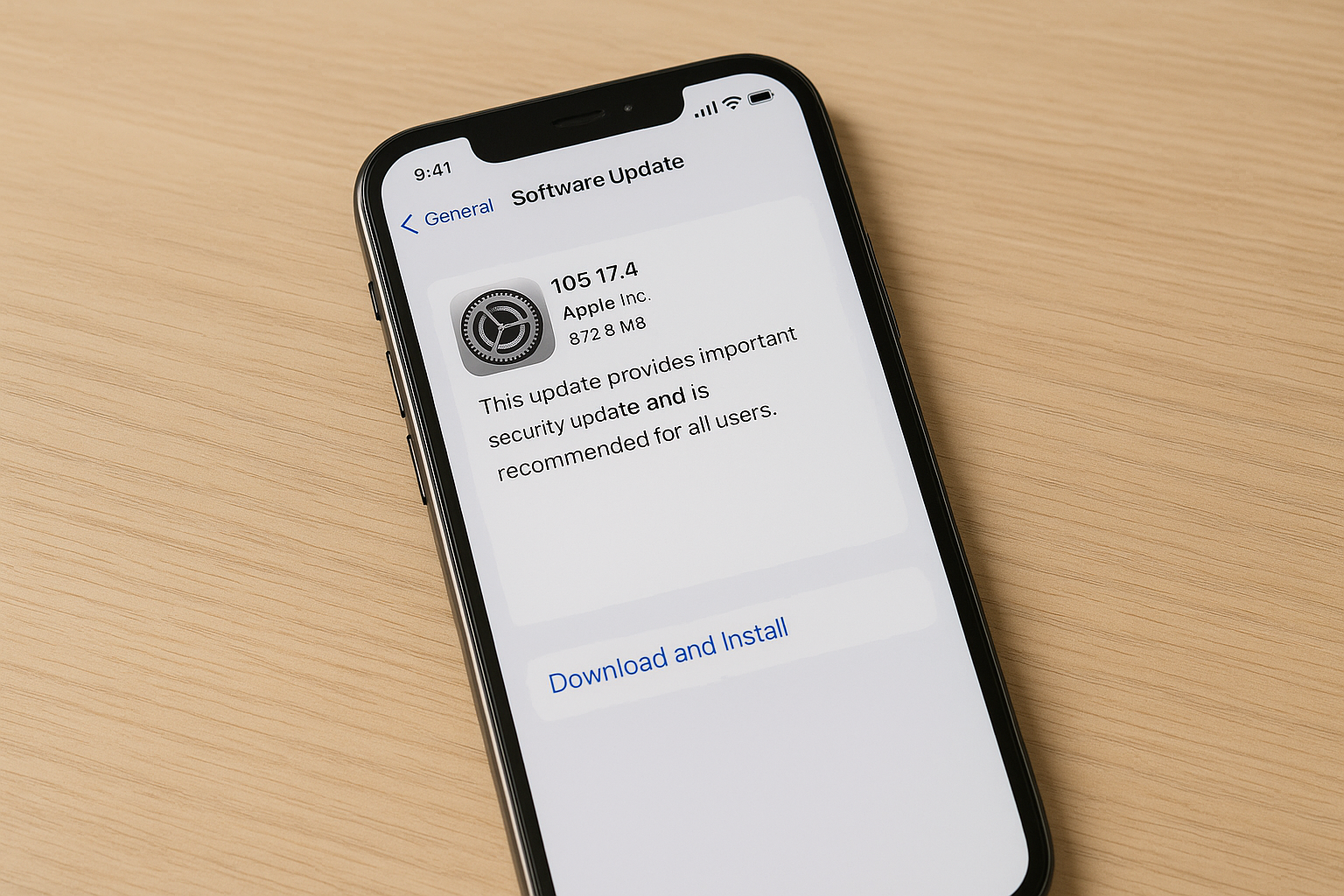
System updates often include critical Face ID fixes that Apple doesn’t list in public release notes.
Remove recently installed apps
Third-party apps rarely interfere with Face ID, but certain camera or security apps can create conflicts. Uninstall any apps you added around the time Face ID stopped working. Focus especially on apps requesting camera access or biometric permissions during installation. Restart your device after removing suspicious apps.
Step 5. Check for hardware damage and know when to repair
Physical damage to your iPhone’s TrueDepth camera system prevents Face ID from functioning, and no amount of software troubleshooting will fix it. If you’ve tried all previous steps and face id setup not working persists, hardware failure is likely the culprit. Recognising the signs helps you decide when professional repair becomes necessary.
Signs of TrueDepth camera damage
Your device shows specific symptoms when the infrared sensors or front camera sustain damage. You might see a persistent "Face ID Not Available" message even after restarting, or the setup screen freezes during the scanning animation. Physical indicators include visible cracks near the notch, misaligned sensors after a third-party screen replacement, or water damage indicators triggered near the front camera array.
Hardware damage requires professional diagnosis, as the TrueDepth system cannot be repaired at home.
When professional repair is necessary
Contact a certified repair technician when software fixes fail to resolve setup errors. Fyxters connects you with vetted local technicians across Canada who diagnose TrueDepth camera issues and provide upfront pricing before starting any work. All repairs include a service guarantee, ensuring your Face ID functions properly after completion.
If it still won’t set up
You’ve completed every troubleshooting step, but face id setup not working remains your problem. At this point, your iPhone or iPad likely has hardware damage affecting the TrueDepth camera system. Water exposure, drops, or failed third-party repairs commonly damage the delicate sensors needed for facial recognition. These components cannot be repaired at home and require professional diagnosis and replacement.
Apple Stores and authorised service providers charge premium rates for TrueDepth camera repairs, often quoting several hundred dollars. Fyxters offers a faster, more affordable alternative by connecting you with certified local technicians who specialise in iPhone repairs. You get transparent upfront pricing, same-day availability in many cases, and a quality guarantee on every repair. Book a repair in minutes and choose between visiting a nearby location or requesting mobile service where a technician comes to you.
If you’re in Montreal and need immediate help, book an iPhone screen repair in Montreal through Fyxters to get your Face ID working again.